So I was about to try to host a WCF service on my shared hosting plan, and I was excited given my knowledge that such a tutorial had already been written – or so I thought. I began by reading through some of the many WCF service creation tutorials available on the web. These explained the fundamentals, and gave the steps required to create a working WCF service. I was able to host these locally without much trouble, given that Visual Studio 2008 automagically does everything for you. I can shut off my brain (a bad habit in coding, mind you) and trust that everything will work for me behind the scenes.
But once I was ready to test in a shared hosting environment, I drew a blank. What the heck was I supposed to do? No sweat, I told myself. I just referred to an article written by our very own D-roc entitled: “Hosting WCF Services on a Shared Hosting Plan.” Much to my horror, this article didn’t explain the first thing about hosting a WCF service on a shared hosting plan; it merely warned me of a single “gotcha” that could occur. It should have been titled: “One Thing To Look Out For When Hosting a WCF Service on a Shared Hosting Plan.” It lost me on the fourth sentence:
If you would try to run a web service using this markup,
<%@ ServiceHost Language="C#" Debug="true" Service="SomeService" %>
Huh? What’s this markup? Where does that markup live? I don’t have that markup anywhere in my code. Is that supposed to be on my web server somewhere? Where do I find/put it?
I had to refer back to one of my tutorials at codeidol.com, under the topic of WCF Essentials –> Hosting. I was a little worried because these articles seem a little outdated, but not too outdated, I hoped. In this topic, the author describes how to use IIS (Microsoft Internet Information Server) hosting. Now, I don’t know much about IIS, but I know that it’s Microsoft’s server software for allowing servers on the internet to host web pages, FTP sites and that sort of thing. I also know that my web hosting company has IIS installed and lets me administer it somehow. So I figured this was my best bet.
Specifically, the article said that in order to host a service, I need to create a “virtual directory” and “supply an .svc file”. Okay, I’d heard the term “virtual directory” before but I had no idea how to create one. I was guessing it’d be a setting in my web host administration tool, so I looked. Sure enough, in my web host administration control panel, I had a menu heading called “IIS Manager” and a setting called “Set Virtual Dir.” I also noticed way too many settings that had to do with FrontPage extensions. Microsoft doesn’t even make FrontPage, and hasn’t since 2003. Why is this a big supported feature? But I digress:

So I clicked this option and it brought up a page that let me specify the name of the virtual directory, and the actual directory where it should point. I created a directory and made the virtual directory the same name. Hopefully your web host will have something similar:

Now, I needed to somehow let the web server know that I have a service there. Well, I don’t yet, but I wanted to make it think that I did. So I opened up notepad and created an .svc file. Now, rather than using the sample from codeidol.com, I decided to use D-roc’s example, since I assumed that his would be the “newer” of the two, in case there were any differences, and I didn’t want to do things the “old” way. So I created a file called myservice.svc with the contents:
<%@ ServiceHost Language="C#" Debug="true" Service="SomeService" %>
I then FTP’d to the folder which I set as an IIS virtual directory, and copied this svc file there. Then I navigated to this folder in a web browser. Predictably:
Directory Listing Denied
This Virtual Directory does not allow contents to be listed.
Okay, so somehow I needed to give the appropriate permissions. From experience, I know that if you set global execute permissions using your FTP client, you can make the directory viewable to anyone browsing to it in a web browser, but I was pretty sure this was something different… perhaps an IIS setting. So, back to my web host control panel I went, and look what I saw:
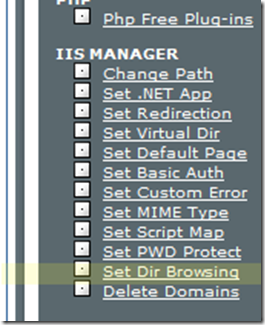
Sounds promising. Sure enough, after clicking that option, I was able to browse all my directories and set “Browsing On” for whichever I chose. I then browsed to this folder using a web browser. I expected it to somehow run the service, then throw up an expected error saying that it couldn’t find it. Instead, I got a directory listing with a single file: myservice.svc. @#$%. I don’t want people to actually be able to browse my svc file. I want it to actually be run. So I disabled browsing on that folder. Strike 1.
Alright, I saw another option that looks just vague enough to be promising:

Maybe this would set a certain file to be considered a “.NET App”, and maybe run as such. (I should have mentioned earlier that I had Google’d every step of this process and ran into several dead-ends, hence the need to even post this article-blog-entry.) Google led me to believe that this was for running ASP.NET applications, but there was some hint that it applied to web services as well. A WCF web service is a .NET application, technically, isn’t it? At least, it’s run within one. So choosing this option let me pick a folder to set as a .NET application. This made little sense to me, because a folder is a folder, not an application. But I assumed that IIS would intelligently look inside the folder for an applicable application. So I choose my “myservice” folder and set it as an application. Back to the web browser:
Directory Listing Denied
This Virtual Directory does not allow contents to be listed.
@#%$!!!!!
Okay okay, no sweat. I will try to turn browsing on; because maybe it will work properly in conjunction with setting that folder as a .NET App. WRONG. It still browsed the folder, .svc and all. Okay, I will try to give execute permissions to the actual directory via my FTP client:
Directory Listing Denied
This Virtual Directory does not allow contents to be listed.
At this point, I’m thinking to myself: “Wow, that would have been super swell if D-roc had actually explained the first thing about getting this set up in his article.”
Okay, maybe I’m going about this with some wrong assumptions. I mean, who cares if I can’t browse the folder? I shouldn’t be able to browse the folder anyway, right? This web service isn’t even supposed to be accessed via a web browser; it’s supposed to be accessed via some other client app on a user’s PC. So, I start thinking to myself: Visual Studio is cool enough not to require me to manually FTP a freakin’ svc file to my web server. There should be a way within Visual Studio to do this. Well, luckily enough, I have my Visual Studio Web Service project I had previously created. And sure enough, if I right-click that project, I see a “Publish…” option. So I chose that option, and it prompted me for the target location. I entered: http://mydomain.com/myservice and chose the default options, and clicked Publish.
Much to my amazement, it worked the first time!
Connecting to http://mydomain.com/myservice…
Publishing folder /...
Publishing folder bin...
========== Build: 2 succeeded or up-to-date, 0 failed, 0 skipped ==========
========== Publish: 1 succeeded, 0 failed, 0 skipped ==========
I verified that in fact there were files published to this location. Okay, okay, that’s a first step! Now I want to test this service, which, by the way, simply takes an input string and manipulates it in a simple way. I had some trusty code at my disposal from an online tutorial involving using WCF for interprocess communication. Even though that’s not what I was doing, I still needed to make a connection using a similar method (or so I assumed).
So, in short, my client needs to create a channel between itself and the server. It can do this using the handy ChannelFactory class provided by WCF:
ChannelFactory<IMyService> httpFactory = new ChannelFactory<IMyService>(
new BasicHttpBinding(),
new EndpointAddress("http://mydomain.com:8000/MyService"));
IMyService httpProxy = httpFactory.CreateChannel();
So this is my client app. It references a shared contracts library which defines IMyService. In case you haven’t tell by now, I’ve replaced the real names of my things with fake ones, to protect my billion dollar ideas. If you want a full explanation of my logic here, please refer to the tutorial I referenced earlier. So, I figured that something would go wrong if I ran this code, so I did – just to get a taste of what this brand of failure looked like, so that I’d recognize it in the future.
When I ran the test client, the handy built-in Visual Studio service host launched. This was a bit disconcerting, since the ServiceHost I care about is the one allegedly hosted on my web server, so I didn’t want the local one to interfere. But I carried on. To my not-so-surprise, no exceptions were thrown when I called httpFactory.CreateChannel. The real test would be the following line:
string translatedMessage = httpProxy.TwistMessage("I am a message.");
This code should actually connect to my service through my proxy, send it some message and get a string response, all handled for me. Right? I mean, I published my service already, so hopefully I can expect good things. No such luck; I got an EndpointNotFoundException:
Could not connect to http://mydomain.com:8000/MyService. TCP error code 10060: A connection attempt failed because the connected party did not properly respond after a period of time, or established connection failed because connected host has failed to respond xx.xxx.xx.xx:8000.
Okay, so let’s review my understanding: The endpoint is somewhere on the web server. It’s part of the service, which is hosted by a ServiceHost. But IIS manages the ServiceHost. Somehow I need a ServiceHost running from IIS on my web server. I already used the management tool to set a folder as an IIS .NET application (which, again, makes little sense because a folder is not any sort of executable as far as I know). But wait, why did I use port 8000? I just assumed that was proper, because I copied it from an example. So let’s remove it and see what happens when I run the TestApp again, and attempt to call a service method from the proxy:

Progress! Maybe! Virtually clueless, I google’d this problem. I found some forum posts with little help provided, but also this seemingly potentially helpful MSDN article. In a cryptic way, the article explained – or so I believe – that I need to associate svc files with a certain DLL (aspnet_isapi.dll) in IIS. It gave instructions about how to do this, of course working from the assumption that I am running IIS locally, which I, like hundreds of thousands of other people, are not. No matter, there’s got to be an obvious way to accomplish the same thing in my web host. Sure enough, something promising:

Clicking this link led me to an administration page where I could choose file extensions and the “program” (for lack of a better term) to execute them with. I didn’t see the aspnet_isapi.dll listed explicitly, but I saw the option “ASP.NET”, which seemed to be close enough:
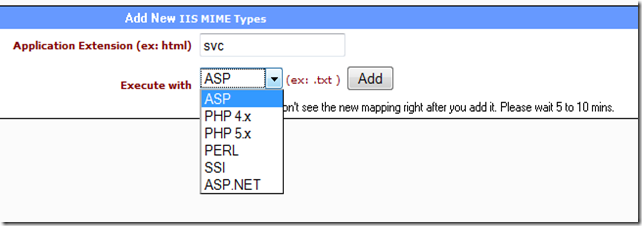
BAM! After clicking Add, sure enough, the association was listed as: C:\WINDOWS\MICROSOFT.NET\FRAMEWORK\V2.0.50727\ASPNET_ISAPI.DLL. Ladies and gentlemen, this is called “progress”. Carelessly ignoring the potential warning about waiting 5 to 10 minutes, I ran my test app again:
Dang. Well, I can wait the 5-10 minutes, but in the meantime I’m going to check the files published to my folder, since earlier I explicitly removed my old bogus svc file (assuming Visual Studio would be smart enough to create one for me when publishing). Yep, it did. The svc file is sitting there in the folder, sure enough. Okay, I will wait…
WAITED. SAME ERROR.
Okay, let’s try a new angle: I’m going to connect to the svc file with the web browser:
Server Error in '/myservice’ Application.
Runtime Error
Description: An application error occurred on the server. The current custom error settings for this application prevent the details of the application error from being viewed remotely (for security reasons). It could, however, be viewed by browsers running on the local server machine.
…
Okay, I’ve had experience with this type of exception before, and it gave me instructions for getting specific details about the error message by modifying my web.config file:
<!-- Web.Config Configuration File -->
<configuration>
<system.web>
<customErrors mode="Off"/>
</system.web>
</configuration>
So I’ll try this. Nothing to lose. I quickly discover that I don’t have a Web.Config, but I do have an App.Config. Close enough, right? It has a <configuration> group, so that’s probably the same, right? BOOM, added. Published. Dang, no change. Viewing the Web.Config in my app directory via FTP revealed that the customErrors tag was not added. But wait, was I deceived? My healthy skepticism of software brought my attention to a Publish dialog option. Which one?

Choosing the “Delete all existing files prior to publishing” option made the customErrors tag propagate, and I was finally able to see the actual error:
[ArgumentException: This collection already contains an address with scheme http. There can be at most one address per scheme in this collection.
Parameter name: item]
Oh my, look what we have here!! After hours of struggling trying to learn how to host a WCF service in a shared hosting plan, I’ve finally reached the point where D-Roc’s tutorial, entitled “Hosting Wcf Services on a Shared Hosting Plan” begins! Well hey, whaddya say we follow his instructions?
(Please refer to D-Roc’s tutorial for a walkthrough of this process.)
Now that I’ve completed the steps D-Roc described, I’m gonna try loading the svc file in a web browser again. I don’t expect anything to work, since I’m not actually calling the service’s methods, but I just want to see what happens:
Server Error in '/myservice’ Application.
The resource cannot be found.
Description: HTTP 404. The resource you are looking for (or one of its dependencies) could have been removed, had its name changed, or is temporarily unavailable. Please review the following URL and make sure that it is spelled correctly.
Eh, that’s not the first thing I expected, but I’m going to assume that there’s just some dependency of the service that can’t be loaded considering I’m like… not properly connecting to the service. Shaky reasoning, I know, but really, what would I expect to happen if I connected in this unorthodox way?
Anyway, if I recall, I had a test app that I was playing around with. Let’s see if my recent changes made any difference regarding the problem I was having. I ran it and….
Ugh, kill me. Alright, I Google’d some more and found that someone had had a similar issue, and solved their problem by changing their endpoint address to actually point to the svc file rather than just the virtual directory. In plain English, instead of:
ChannelFactory<IMyService> httpFactory = new ChannelFactory<IMyService>(
new BasicHttpBinding(),
new EndpointAddress(http://mydomain.com/MyService/));
I should (maybe) write:
ChannelFactory<IMyService> httpFactory = new ChannelFactory<IMyService>(
new BasicHttpBinding(),
new EndpointAddress(http://mydomain.com/MyService/MyService.svc));
So I made this change and ran the test app. Here is what I got:
ServiceActivationException was unhandled
The requested service, 'http://mydomain.com/MyService/MyService.svc' could not be activated. See the server's diagnostic trace logs for more information.
I DON’T HAVE ACCESS TO THE SERVER’S DIAGNOSTIC TRACE LOGS! It’s a remote host!!
So at this point, I’m thinking I was better off without specifying the svc file in the endpoint address. At least before I was getting an exception that seemed to imply that my service was being contacted and my method request was being rejected. This new exception makes it sound like my service isn’t even executing.
So, by now you must be anxiously awaiting my resolution to this problem. Unfortunately, I haven’t come across one yet! I will have to leave you in suspense until I actually figure out how the heck to get this thing working properly. (Hint: I will ask D-Roc to tell me what the @#$% he did.)
Update: It turns out that my custom factory created from D-Roc’s tutorial was actually expecting the service to be accessed via “www.mydomain.com” rather than “mydomain.com”. Here’s the tiny change I had to make:
ChannelFactory<IMyService> httpFactory = new ChannelFactory<IMyService>(
new BasicHttpBinding(),
new EndpointAddress(http://www.mydomain.com/MyService/MyService.svc));
But then, when running the test client and calling my service method on the proxy, I got a ProtocolException: Content Type text/xml; charset=utf-8 was not supported by service… To fix this, I needed to change BasicHttpBinding to WSHttpBinding, like this:
ChannelFactory<IMyService> httpFactory = new ChannelFactory<IMyService>(
new WSHttpBinding(),
new EndpointAddress(http://mydomain.com/MyService/MyService.svc));
Thanks to this article for explaining this.
Update 2: I found it quite odd that a Visual Studio 2008 Web Service project item wouldn’t create an svc file within the project. Instead, it would generate a generic one automatically every time I published my service (via Visual Studio’s Publish… option). But, as it turns out, if I manually add an svc file into the project, it will publish that one instead, and won’t generate one on its own. The more you know.
After all this headache, my web service finally ran. I feel much smarter now. Oh, and to put things in perspective, all of these struggles I’ve encountered are still much less of a headache than the iPhone development experience.


