Wednesday, April 6, 2011

Update: What Internet Explorer 9 needs in order to make me switch from Chrome

I may as well post an update now that I’ve used IE9 for a couple weeks now.  (Also, Dimitri hassled me about it.)

The verdict is that IE9 is a great improvement over IE8.  In fact, I don’t even need to follow that up with a “but I’m still not going to use it because…”  In fact, I use it about as often as I use Chrome now.  I generally switch back and forth depending on which happens to be causing me trouble at any given time.

But to address my criteria:

1. Spell-check

Still absent, annoyingly.  It’s 2011.  Supposedly it can be included via some plug-in which was not immediately obvious when I tried to find it.  If I open the “Manage Add-ons” window, I see nothing in the list that shows any indication that it’s spell-check-related.  Even when I click the link to find more add-ons online, I’m directed to some pretty-but-unusable web site which allegedly should allow me to search for add-ons, yet when I click the Search button, it merely opens to an unusable tiled list of addons (none of which I need) with no search text field to speak of.  I clicked Search, not Browse.

2. Tab-dragging/removal/insertion

Excellent, works well.

3. The ability to switch to another tab while the previous tab is loading/rendering content

Also excellent.  I was really skeptical about MS getting this one in.  It’s one of those features that rarely finds itself in a design spec, and yet is vitally important to user perception of performance.

4. More efficient URL auto-completion

It seems to work exactly as in Chrome now, which is excellent.


So there you have it.  I still use both Chrome and IE, and I may lean toward Chrome but whenever it fails for some reason, I don’t hesitate to switch to IE.  At any given time I seem to have tabs open in either browser.  Oh, and having Windows 7 jump-list preview-whatever-you-call-it support is nice, too.

Thursday, March 10, 2011

Performing a Simple Build Task with the Microsoft stack

First of all, I hate it when the term “stack” is used in this context.  Speak in plain English, people.

Now on to the issue at hand.  I have a Visual Studio 2010 solution I want to build.  Because of limitations in Visual Studio’s ability to customize builds of different configurations (e.g. Debug vs Release), I have to execute a custom build step to mess with some of my project files before they get built, and do some custom stuff depending on whether I’m running the Production or Development configuration.

This is fine; at this point I’ve come to terms with Visual Studio’s limitations and will gladly write some hacktastic pre-build step.  So, being the good citizen that I am, I consider alternatives for approaching this:

1) I can write a custom C# console app to do whatever it is I need to do.

2) I can use the BATCH language or some ancient WScript script or something.

3) I can use this newfangled PowerShell thing I keep hearing about (I say “newfangled” despite it being several years old).

#1 would work fine, but the nice thing about scripts rather than built executables is that you can modify them on-the-fly; the source code is right there at your fingertips.  In short they’re transparent.

#2 might also work fine, but this is an older and more convoluted technology and the solution may be more roundabout.

#3 PowerShell sounds like the perfect combination!  I can allegedly execute .NET code in a script!

So, after wading through the horrendously over-complex MSDN documentation which takes about 10 minutes of wading through links before you can see a concrete code example, I gave up and utilized my handy-dandy Safari Books Online subscription to virtually crack open a book about PowerShell.  The explanations were clear and I was finally ready to test out a simple code example, written into a custom .ps1 file that I created.

So, I tried running it and… FAIL. 

File [myscriptfile].ps1 cannot be loaded because the execution of scripts is disabled on this system. Please see "get-help about_signing" for more details.

Oh, that’s just great.  I read the wall of documentation.  Not only is the execution of scripts disabled, but to enable them in a way that wouldn’t unduly molest other people’s systems when they ran this step would require me to actually sign my script with a certificate.  In short, are you F’ing kidding me?  I want to run a script on the systems of a handful of people who assumedly trust me, and I’ve got to go through convoluted steps of signing my script, having my coworkers manually allow this thing to run, likely introducing extra confusing steps in the build process?  No.  Not acceptable.  Once again, #1 is looking like the best option despite its drawbacks.

Monday, November 15, 2010

What Internet Explorer 9 needs in order to make me switch from Chrome

As I regularly switch between IE8 and Chrome, I’m constantly reminded of the features which IE9 will need in order to make me switch.  I know the particular needs are different for different people, but here are mine:

1. Spell-check

I’m a good speller.  But I still make typos, and there’s still the occasional word that I’m unsure of.  Having to look up unknown words in an online dictionary is an annoyance I shouldn’t have to deal with in 2010.

2. Tab-dragging/removal/insertion

Now that I’ve been spoiled with Chrome’s ability to drag tabs in and out of browser windows into new instances, I’m annoyed when I don’t have this.  I am an unapologetic “tab whore”, and organizing them is important.

3. The ability to switch to another tab while the previous tab is loading/rendering content

Microsoft likes to defend IE’s speed versus Chrome, conveniently measuring only those situations which favor such comparisons.  But here’s a common situation you’ll never see quantified:

I load a page in a tab (either by clicking a link or typing a URL manually).  The page is taking forever to load, so I click to open a new tab (or switch to a currently open tab).  In Chrome, this happens effortlessly.  In IE, however, I’m blocked until the page loads completely.  This is gets old very quickly, and every time it happens, it serves as a reminder for why I prefer Chrome.

4. More efficient URL auto-completion

In Chrome, if I want to visit Facebook, I commonly follow these steps:

1. Click in the address bar.

2. Type the letter ‘f’.

3. Press [Enter].

In IE, it’s these:

1. Click in the address bar.

2. Type the letter ‘f’.  See that the History list has brought up a bogusly-entered URL “http://fa/” from a prior failed attempt to visit Facebook.com.

3. Type the letter ‘a’.  “Facebook” now appears in the History list, underneath “http://fa/”.

4.  Press the down-arrow key twice to select the History entry for Facebook.

5. Press [Enter].

Now, if I know you as well as I think I do, you’re going to launch all sorts of counter-arguments:

You:

“It’s your fault you typed ‘http://fa’ and expected it to work, causing the invalid History entry.”

Me:

One, this would have worked in Chrome, so it just illustrates that Chrome is simpler; and two, Chrome is smart enough not to save bogus URLs in its history, so even if I manually typed http://fa/ in Chrome, it won’t create a History entry for it.  Another strike against IE.

You:

“You can just hit Shift+Enter to load the top URL in your History.”

Me:

So in other words, it’s more complex than Chrome.  Thank you for proving my point.  And I still have to type more characters to eliminate http://fa/ as a history option.

Friday, November 5, 2010

I’ve found that one of the best ways to find a solution to a technical problem at work is to write a lengthy, passive-aggressive email to your coworkers, explaining in detail what you’re trying to do and what’s going wrong.  9 times out of 10, you’ll figure out what’s wrong before you embarrass yourself by hitting the Send button.

Thursday, July 15, 2010

Objective-C MIN and MAX #define wonkiness

Here’s a little odd thing I discovered when trying to use the MIN and MAX macros defined in NSObjCRuntime.h.  I had the following code (simplified):

const int MAX_OBJECTS = 10;
int numObjectsToRemove = MAX(0, myObjectArray.count - MAX_OBJECTS);


Let’s say myObjectArray.count is 1.  What would you expect numObjectsToRemove to become?

0, right?  Because (myObjectArray.count – MAX_OBJECTS) == (1 – 10) == –9, and 0 is clearly greater than –9.  But you’d be wrong.  And so was I.

You see, apparently, since the count member of NSArray is an unsigned int, the entire expression gets treated like an unsigned int.  So, since –9 in unsigned form is actually a very large number, it’s considered greater when compared to 0.  But as if that wasn’t bad enough, when it gets assigned to numObjectsToRemove, it gets treated like a normal signed int again, so its value becomes –9 again.  And you’re left wondering why –9 is considered greater than 0.

The simple fix is to force the macro to treat the whole expression like an int with a simple cast:

int numObjectsToRemove = MAX(0, (int)myObjectArray.count - MAX_OBJECTS);

Tuesday, July 13, 2010

Permission confusion in MS SQL Server 2008

I’m singling out MS SQL Server 2008 though I’m sure this appears in previous versions as well.

Have you ever run into a situation in which, for some reason, you just couldn’t grant someone certain permissions in SQL Server?  If you’re irresponsible like me, you’ll generally just try to give them as much access as possible to make the problem go away sooner.

But there are an insane number of ways you have available to you to change permissions.  Do they all do the same thing?  Are they different windows into the same data, or do they affect different permissions?  Who the heck knows, except the SQL Gods.  Here’s an example of the overwhelming number of ways to assign permissions:

1. Select the Security->Users folder under your database item, and add/modify the property of users from there:

sqlhell_step01

2. Select the Security->Roles folder under your database item, right-click and select Properties on a database role and assign a user to that role.  Bewilderingly, this doesn’t appear to correspond to method #1!  In other words, if I assign a user to the dbowner role using method #1, they won’t be listed in the role membership listing of method #2!

sqlhell_step02

3. Right-click the database object itself, click Properties, then select the Permissions page.  OMG, now there’s a completely separate list of users and very fine-grained permissions which you can “Grant”, “With Grant” (whatever on Earth that means), or “Deny”.  Huh?  Why is there a completely different set of permissions?  Do these override the role memberships?

sqlhell_step03

4. Select a user from Security->Logins of the database server item, edit their User Mapping properties to assign them to a particular database, and from there modify their "Database role membership”.  This seems to correspond to the values in step 1 or 2.

sqlhell_step04

5. RIght-click the database server item and choose Properties, then click the Permissions page.  This allows you to select logins or roles and explicitly assign permissions similar to Step 3.  But you’re assigning these to Logins instead of Users?  Wha?  Does that override the User permission, or does the User value override the Login permission?

sqlhell_step05


I’m sure there are many more ways to modify permissions but I’d just be belaboring the point.  I have nothing against having multiple places from which to modify user permissions, but I’d like if there was some semblance of correlation to one another.  As it stands, when I assign someone permissions, I’m mostly just guessing.  I realize that this is a tool for hardcore administrators, but in reality it’s used by a lot of everyday programmer-users like myself.  We aren’t administrators nor do we want to be; we just need to do what we need to do to get our job done.

I have something I want to do and a cryptic way to accomplish this through the administration tool.  What I want is an easier way to specify what I want, and have the system be smart enough to guide me through (possibly multiple) options for making this happen.

Wednesday, June 9, 2010

2D Line segment intersection detection in C#

For a previous game project, I needed a nice line segment intersection detection algorithm.  It was surprisingly difficult to find a good one in C#, but I found one in C++ that I converted. 

As it turns out, my upcoming game makes heavy use of this algorithm as well.  So here it is in case anyone else needs it.  This version is a little sloppy in that it uses 3D constructs despite checking 2D intersections, but it would be simple to convert this to its 2D counterpart.

Line segment intersection C#
  1. // Returns true if the lines intersect, otherwise false. If the lines
  2.         // intersect, intersectionPoint holds the intersection point.
  3.         public bool Intersects2D(LineSegment3 otherLineSegment, out Vector3 intersectionPoint)
  4.         {
  5.             float firstLineSlopeX, firstLineSlopeY, secondLineSlopeX, secondLineSlopeY;
  6.  
  7.             firstLineSlopeX = this.Point2.X - this.Point1.X;
  8.             firstLineSlopeY = this.Point2.Y - this.Point1.Y;
  9.  
  10.             secondLineSlopeX = otherLineSegment.Point2.X - otherLineSegment.Point1.X;
  11.             secondLineSlopeY = otherLineSegment.Point2.Y - otherLineSegment.Point1.Y;
  12.  
  13.             float s, t;
  14.             s = (-firstLineSlopeY * (this.Point1.X - otherLineSegment.Point1.X) + firstLineSlopeX * (this.Point1.Y - otherLineSegment.Point1.Y)) / (-secondLineSlopeX * firstLineSlopeY + firstLineSlopeX * secondLineSlopeY);
  15.             t = (secondLineSlopeX * (this.Point1.Y - otherLineSegment.Point1.Y) - secondLineSlopeY * (this.Point1.X - otherLineSegment.Point1.X)) / (-secondLineSlopeX * firstLineSlopeY + firstLineSlopeX * secondLineSlopeY);
  16.  
  17.             if (s >= 0 && s <= 1 && t >= 0 && t <= 1)
  18.             {
  19.                 float intersectionPointX = this.Point1.X + (t * firstLineSlopeX);
  20.                 float intersectionPointY = this.Point1.Y + (t * firstLineSlopeY);
  21.  
  22.                 // Collision detected
  23.                 intersectionPoint = new Vector3(intersectionPointX, intersectionPointY, 0);
  24.  
  25.                 return true;
  26.             }
  27.  
  28.             intersectionPoint = Vector3.Zero;
  29.             return false; // No collision
  30.         }

Friday, March 19, 2010

Improving music performance in the iPhone SDK

For people who like to copy and paste other people’s solutions without researching the problem in depth, this entry is for you (since I don’t go into depth).

I was noticing my iPhone game framerate being really jerky when playing music that I encoded using IMA4 format, so I changed it to LEI8.  The file format is somewhat big, being lossless, but the tradeoff is that I hardly notice any jerkiness now.

In short, I was previously running this to convert my files before:

/usr/bin/afconvert -f caff -d ima4 Source.mp3 Target.caf

and now I’m doing this

/usr/bin/afconvert -f caff -d LEI8 Source.mp3 Target.caf

I don’t notice any sound quality degradation either.  I also tried LEI16 but it wasn’t worth the doubled size for no noticeable quality gain (Your Mileage May Vary).

Sunday, January 31, 2010

Reflections from Global Game Jam 2010

I posted a characteristically long blog entry via my account at globalgamejam.org, which I will repost here:


I've survived the Global Game Jam, and my team created something resembling a game. To say that I'm happy with it or proud of it would be untrue, unfortunately. It's hard not to look back at all the things that could have been but weren't, or imagine what could have been added if only we had slightly more time.

In the end, we created an espresso stand themed mini-game, essentially. Was it innovative? Not really. Was it fun? Not in its 48-hour state, but there was potential at least. Was it the game I dreamed of making during the months preceding the Jam? No. Why? What went wrong? I will try to address these questions in a way that won't spiral into hopeless negativity.

My first blog entry listed the lessons I learned from my last Game Jam. I want to revisit them to see how well I did, and then see what new lessons I learned from this one:

* Find a team you mesh well with.

My teammates were cool people, but it was clear that we had very different goals and very different sets of experience. Dwelling on this will only sound like blaming, but suffice it to say I didn't do a good job here.

* Use source control.

We had an SVN server up and running pretty quickly, and this saved us. I don't even want to think about the challenges we would have faced otherwise.

* Scale scale scale

Our overall game idea was indeed very straightforward, but we aimed for far too many embellishments than we should have for a 48-hour game. Probably half of the time was spent creating/working with content in some form, rather than coding actual essential gameplay logic. Because of this, we ultimately had to cut key features of the game.

* Throw solid coding practices to the wayside

I feel we reached a really good balance here. Our code was structured in a fairly logical way but with some corners cut for the sake of time (for example, avoiding unnecessary future-proofness by hardcoding logic which assumes two players).

The lessons I learned from this Jam were mostly rehashes/reinforcements of the previous lessons:

* Find a team that you mesh well with, part 2: I had been excitedly anticipating this event for months in advance, and all my friends knew because I talked about it constantly. Naturally I arrived early, brought tons of supplies/food/drinks with me, set up my laptop with source control, etc. ahead of time. I should have immediately seeked out other developers who shared the same passion. And remember, you are inevitably going to have to compromise on a design idea. So find people who have design goals as close as possible to yours (e.g. don't group with someone who is passionate about Myth-esque puzzle games if you really want to make a retro shooter)

Speaking of design, I might get flak for saying this, but for a 48-hour game, a designer with little or no programming experience is dead space unless they're also an artist. Everyone is a designer. Everyone has ideas. Yes, there are good designers and there are horrible designers. But even a great designer who does nothing but design is not worth it on a 48-hour game. More likely than not, a dedicated designer will only increase the scope of the game by dreaming up infeasible features, causing friction with the developers who actually have to [dare I say] do the work.

If you're lucky, you'll find a programmer who is already good-enough at art. The artistic bar is not exactly high for a 48 hour game, so "good-enough" is all you need. A dedicated, exceptional artist is a great asset as well though, because it's often the aesthetics that really boost the appeal of games of this scope.

I didn't mention sound designers, because again, the scope of the game is so small that sound is often an afterthought, but they can be a great addition if you can afford the opportunity cost.

* Scale scale scale, part 2: Your design should be iterative even for a 48 hour game, but a crucial point is that this design should start extremely simple. Find a core mechanic, keep the mechanic DEAD SIMPLE, and if you have time, iterate on it. Here's a counter-example of what I mean:

For our espresso game, "Cheap Shots", the original plan was to have players create different drinks by pressing buttons in a particular sequence on an Xbox controller. So, one drink might be A, B, B, X and another might be X, Y, A, B (the buttons were supposedly associated with different ingredients). Before we had even completed implementing this basic mechanic, we began dreaming up new ways to add ingredients; for example, holding the trigger and releasing it at a particular time might be associated with steaming milk, or turning the thumbstick on the controller might be associated with stirring the drink. This was a mistake from the start. I ended up spending precious amounts of coding time trying to implement these special case scenarios (keep in mind they all required additional UI assets as well), while core gameplay mechanics were being neglected (score board, game timer, essential UI elements, etc.)

Further, we spent what felt like half of our time dealing with mountains of sound assets that were completely non-essential to the gameplay. These were the types of niceties that could be added after the fact, when the core gameplay was done.

So, in short, it's not just the game that needs to be simple; the core mechanic needs to start dead-simple and optionally build from there after you have a complete gameplay experience.

Here are some additional lessons I learned, though some are minor:

* Make sure that your working environment is comfortable.

DigiPen was great. There was an active work environment with plenty of space. But when you're working for 48 hours almost nonstop, even the minor things can become major annoyances. I was foolish enough to position myself in the middle of a long table, separated enough from my team that any time they called me over, I needed to practically climb over my table or else squeeze by several people to get to them. After the 25th time having to do this, I was ready to relocate.

Also, make sure you have the best setup you can get; a large monitor, comfortable mouse, etc.

As soon as you sense an annoyance, fix it, or it'll be a thorn in your side for the next 48 hours.

* Time is precious; don't waste it.

Yes, I know, this is obvious. My point isn't about goofing off excessively or being lazy. If you're inclined to do that at a game jam, you're probably not passionate enough for it to begin with. I'm talking about other time wasters. For example, you don't need to notify your team about every single change that doesn't affect them, show them every cool thing you added, or ask them questions that you can easily find the answer to yourself (i.e. "Where is X defined in the code?"; there's a search function for that). Remember, assuming you picked a good team, their time is every bit as valuable as yours. Every time you interrupt them in the middle of coding, you break their concentration. You force a "context switch", and it takes them time to regain their focus. Don't have needless conversations in which you explain at length how you intend to implement something; just do it. And similarly, don't explain at length how someone elsemight possibly implement something, unless they are requesting your help or are working on a shared component. They could be using that time to actually implement rather than discussing it.

In the off chance that anyone actually read through this in its entirety, I hope it provides some value.

Tuesday, January 26, 2010

Error: Cannot read configuration file due to insufficient permissions – possible solution

I wanted to post an incomplete solution to this problem that I’ve encountered a couple times now.  I’m not sure the exact cause but the jist of it is that I’ve got a web site I’m hosting via IIS7 on a remote server which I can access just fine.  But when I try to host this on my local machine for debugging purposes, I get an error which resembles this when I access the page:

Server Error in '/xxxxx’ Application.

Filename: redirection.config
Error: Cannot read configuration file due to insufficient permissions

Description: An unhandled exception occurred during the execution of the current web request. Please review the stack trace for more information about the error and where it originated in the code.

Exception Details: System.UnauthorizedAccessException: Filename:redirection.config
Error: Cannot read configuration file due to insufficient permissions

ASP.NET is not authorized to access the requested resource. Consider granting access rights to the resource to the ASP.NET request identity. ASP.NET has a base process identity (typically {MACHINE}\ASPNET on IIS 5 or Network Service on IIS 6) that is used if the application is not impersonating. If the application is impersonating via <identity impersonate="true"/>, the identity will be the anonymous user (typically IUSR_MACHINENAME) or the authenticated request user.

To grant ASP.NET access to a file, right-click the file in Explorer, choose "Properties" and select the Security tab. Click "Add" to add the appropriate user or group. Highlight the ASP.NET account, and check the boxes for the desired access.

The Solution:

1. Identify the user under which your web site’s application pool is running under.

2. Add this user as a User Account on your local machine and add them to the IIS_IUSRS Group (the names have been obscured to protect the innocent).

image

Sunday, January 17, 2010

Indie game developer YouTube/Vimeo channels

On one of my sister blogs, I posted a link to some independent game developer video channels.  I’ve tried to get D-Roc to make a similar video series with me, but he wouldn’t have it.  I’m convinced we could make something every bit as compelling or more (or at least have fun doing it), but alas, it wasn’t meant to be.  Maybe I’ll create my own series some day.

Tuesday, January 12, 2010

Creating a file share with a custom name – an unpleasant Windows 7 user experience


I usually run into this issue when I have two folders of the same name that I want to share, but I want sensible share names to distinguish them from one another.

For a concrete example, let’s suppose you have local folders on your PC called c:\project\tools and c:\development\tools (stupid names, I know).  You want to share both of these to the outside world, so you browse to c:\project, right-click the tools subfolder and click Share:

image

If everything works properly, it auto-assigns a share name of \\yourmachinename\tools.  Congrats.

But now you want to share c:\development\tools, so you follow the same process.  Here is what happens:

image

The folder is automatically shared as tools2.  Note that there is absolutely no option to choose a different name at this time.  Whether you like it or not, your folder is initially going to be shared as the name tools2.

So, now that it’s shared as tools2, you want to somehow change the share name.  To do this, you need to right-click the folder, navigate to its Sharing properties and click Advanced Sharing… (because apparently renaming a share is an advanced feature).

image

In the Advanced Sharing dialog, you’ll notice in the Settings group that it displays the current share name and lets you add additional share names.

image

What you must do is first Add a new share name (you can’t delete the existing one until you do), and give it the name you prefer (in this case, toolsdev).

image

Now you’ve got two share names for this folder, so delete the extraneous tools2 name.

image image

Now, to make matters worse, if you’ve already assigned permissions to the tools2 share, you’ll have to reassign them.  I’m not sure why this is the case.

image

Congrats!  You’ve finally created a shared folder of the name you desire, but it took about 5 steps more than it should have.

Monday, November 16, 2009

Using Command-line arguments in Windows Services – a “gotcha”

This can’t really be considered a “gotcha” more than just a “pay careful attention to the perhaps unintuitive documentation” scenario.  Also, this assumes basic knowledge of creating Windows Services.

So here’s the situation: I wrote a Windows Service, and I wanted to optionally enable verbose debug output (since services are a bit of a pain to debug) using a command-line option.  Services, after all, can be started with command-line arguments.  But regardless of what I entered as the command-line arguments, the OnStart(string[] args) method of my service would always report that “args” was empty – that is, no arguments.

After some quick Bingoogling, here’s what I found:

The arguments in the args parameter array can be set manually in the properties window for the service in the Services console. The arguments entered in the console are not saved; they are passed to the service on a one-time basis when the service is started from the control panel.

I still thought that I was doing the right thing, by going to my service’s properties, typing command-line arguments, clicking OK and then right clicking the service and choosing Start:

image

image

But no luck!  The solution was very simple: Click Start from within the Properties window.  As soon as you click OK (which intuitively would seem to save the changes to the Start parameters, as is the case in every other properties dialog in the history of mankind), the Start parameters disappear.

Saturday, October 31, 2009

Pressure Sensitivity Problem with Wacom Bamboo Pen Tablet in Windows 7

Okay, this isn’t my usual coding-related post, but I hope it helps someone.  There are a million different threads about Wacom tablets not working properly with various software on various system configurations, and there’s no shortage of suggested solutions, so I’ll describe my specific situation and its specific solution:

Problem: Wacom tablet pen pressure sensitivity does not work in Adobe Photoshop CS4.  More specifically, it draws at full brush thickness all the time, unless I double-tap the tablet quickly and then begin drawing immediately after, which surprisingly allows pressure sensitivity to work.

My Configuration: Windows 7 Ultimate, Wacom Bamboo Pen tablet (the most basic model), Adobe Photoshop CS4 (as mentioned above)

Solution: In short, disable using the “press and hold” pen action as a right-click equivalent in the Windows tablet pen control panel.  To do this:

Click the Windows button, and in the search box type “Change tablet pen settings".  Open the item that appears.

image

In that dialog, in the Pen Options tab (the default), in the Pen actions group, select the Press and hold pen action and then click the Settings… button.

image

Then, in the dialog that appears, uncheck Enable press and hold for right-clicking and click OK.

image

Windows’ Tablet PC settings are fighting with the tablet’s usefulness, doing their best to turn it into a primary input device rather than a dedicated drawing instrument.  In my specific case, you’ll notice that every time you tap the pen and start drawing (interpreted by Windows as a “tap and hold”), a circle will start drawing around the tap location, and once it finishes drawing, the equivalent of a right-click is received.  This is not a Wacom thing; it’s a Windows thing, and it’s messing with your ability to use your pen with proper pressure sensitivity.

Since my Bamboo tablet pen has a button on it which maps to a right-click by default, I don’t need the “press-and-hold” right-click functionality, and you likely don’t either.

I hope this saves someone some frustration.

Wednesday, October 28, 2009

GetHashCode is useful, who knew?

If you’re like me, you’re inclined to lazily ignore warnings to override object.GetHashCode for your custom types if you’ve already overriden object.Equals.  If I’m using a Dictionary and using one of my objects as a key, then sure, I can see the point.  But if I’m just throwing it in a generic List, object.Equals is good enough, right?

Well, yes, but apparently this isn’t a safe assumption to make for any given collection type or operation.  I learned this the hard way with LINQ’s Enumerable.Intersect method (an extension method of IEnumerable<T>).

Without going into detail about set theory, the Enumerable.Intersect method will take two collections of objects, and return a collection of objects which both source sets contain.  So, for example, if I have two sets of ints:

A = { 1, 5, 7, 9 }
B = { 4, 5, 9, 13 }

The intersected set would contain only the values that both sets share:

{ 5, 9 }

Now, if the items in my sets are of my own custom type, I thought it would be sufficient to override object.Equals for this type.  But no, if I do this, Enumerable.Intersect will return an empty collection, indicating that none of the objects are equal, even if they are.  When I implemented object.GetHashCode as the compiler repeatedly pestered me to do, everything worked fine.

Friday, August 28, 2009

ServerTooBusyException in WCF, possible cause

I wanted to post this confusing error and solution in case this can help anyone else.  Here is my general situation:

1. I was testing my WCF service hosted on a remote IIS server.  I had an identical IIS setup on my local development machine, and I wanted to switch to use it instead for better debugging support. 

2. When I ran the exact same service-calling code on my local machine, service calls always hit the ServerTooBusyException exception.  I checked my local IIS setup, confused that I was getting a different result when all of the virtual directories, ports, bindings, etc. were identical to the remote server.  I manually accessed my service’s URL in a local web browser, i.e. http://localhost/MyService/MyService.svc.  I got the error:

Service Unavailable


HTTP Error 503. The service is unavailable.

Huh?  Not very descriptive.  And being a newbie, I have had no luck following the convoluted steps of getting any sort of service trace logging to work – and I wasn’t even sure if this would help.  (As an aside, PLEASE comment if you know how to enable the type of logging that ultimately would have revealed this problem.)

3. Finally I found a vague comment on a forum regarding changed credentials, and it dawned on me: The account associated with the app pool I was using had had its password changed recently, and I hadn’t updated it on my local server to reflect this.  Once I re-set the credentials for the app pool user, everything worked perfectly.


I hope this post saves a headache or two.

Friday, August 7, 2009

Code Analysis / Team Foundation context menu items missing!

I had an issue recently in which my Team Foundation (2008) enlistment appeared to be partially corrupt.  Some of the symptoms:

1. My “Work Items” folder had a red ‘x’ next to it permanently; I could never connect to my work items on my main PC (but I could from other PCs).

2. When right-clicking on a Code Analysis warning in the Error List panel of Visual Studio, I didn’t get the usual options of “Create Work Item” and “Suppress Message(s)”.

3. Some of the Team menu items were missing, or their sub menu items were greyed out, and displayed error messages such as “value does not fall within the expected range.”

I tried all sorts of painful, time-consuming solutions, even uninstalling/reinstalling everything, but ultimately the solution was simply to delete my local app data Team Foundation Cache folder, located here:

%localappdata%\Microsoft\Team Foundation\2.0\Cache

I hope that someone finds this and it saves them hours of headache.

Monday, July 27, 2009

Resolving “CREATE DATABASE permission denied in database 'master'. (Microsoft SQL Server, Error: 262)”

To those of you who have Microsoft SQL Server Management Studio, and you’re un-hardcore users like myself who simply want to create a simple database to play around with, you might run into this cryptic error when you try to create a new database. 

image

Naturally the help URL link provided merely consoles you with an all-too-common “sorry, we can’t help” message.

We're sorry

There is no additional information about this issue in the Error and Event Log Messages or Knowledge Base databases at this time. You can use the links in the Support area to determine whether any additional information might be available elsewhere.

Given that you’re not a hardcore MS SQL Server user, and neither am I, this error makes little sense.  There’s a system database called master, but I’m not creating that… I’m creating my own database, called ‘MyDatabase’.  I don’t care about the permissions to the database called ‘master.’  Further, I’m the admin on my PC, and I’m using “Windows Authentication”… to me that sounds like I should have the highest possible access to do whatever the heck I want with my local SQL server. 

Well, yeah, you do, but here’s the catch: You have to run the damn SQL Management Studio as administrator.  That’ll make this hellish error go away.  I sincerely hope that this blog post has saved at least one person from the frustration they might otherwise endure.

Sunday, May 3, 2009

Oh noes! Expectation Failed (417) in my WCF service at Tully’s

Just when I thought my WCF service was working properly with regard to different network set-ups (i.e. my work network versus my home network), I found an annoying error occurring whenever I try to call one of my service methods.

Aside: Is that the proper terminology? Do I say: “Whenever I call a service method” or instead do I say: “Whenever I connect to my service” or : “Whenever I access my service” ? I’m not sure of the proper lingo.

image

For the benefit of search engines, that’s: “ProcolException was unhandled. The remote server returned an unexpected response: (417) Expectation failed.”

I verified (via remote desktop) that my home PC is still getting a proper response from the service. So what’s going on? Why am I unable to live up to my web service’s expectations when I’m on my laptop at Tully’s? Well, either it has something to do with my local system configuration, or it has something to do with the network settings here. I don’t really have a convenient way to test another network here, so I’m going to work on the hypothesis that it has something to do with Tully’s wifi network configuration. This seems especially likely given that my web browser is having a heck of a time loading web pages fully. Nevertheless, I don’t want to lazily write this off as an extreme case. I’ll need to use Google to get to the bottom of this.

So, after looking at Google, I’ve found several forums in which people have had a similar problem, and a solution which seems to work is described on my new favorite code-help site, stackoverflow.com:

System.Net.HttpWebRequest adds the header 'HTTP header "Expect: 100-Continue"' to every request unless you explicitly ask it not to by setting this static property to false:

System.Net.ServicePointManager.Expect100Continue = false;
Some servers choke on that header and send back the 417 error you're seeing.

Sure enough, I added this line before my call to the WCF service and everything worked as expected. Of course, it’s still basically magic to me. I understand little about how these requests and responses behave. MSDN demystifies it a little bit more:

When this property is set to true, client requests that use the POST method expect to receive a 100-Continue response from the server to indicate that the client should send the data to be posted. This mechanism allows clients to avoid sending large amounts of data over the network when the server, based on the request headers, intends to reject the request.

For example, assume the Expect100Continue property is false. When the request is sent to the server, it includes the data. If, after reading the request headers, the server requires authentication and must send a 401 response, the client must resend the data with proper authentication headers.

If this property is true, the request headers are sent to the server. If the server has not rejected the request, it sends a 100-Continue response signaling that the data can be transmitted. If, as in the preceding example, the server requires authentication, it sends the 401 response and the client has not unnecessarily transmitted the data.

Changing the value of this property does not affect existing ServicePoint objects. Only new ServicePoint objects created after the change are affected.

The Expect 100-Continue behavior is fully described in IETF RFC 2616 Section 10.1.1.

Sunday, April 19, 2009

My Experience Trying to Host a WCF Service on a Shared Hosting Plan

So I was about to try to host a WCF service on my shared hosting plan, and I was excited given my knowledge that such a tutorial had already been written – or so I thought.  I began by reading through some of the many WCF service creation tutorials available on the web.  These explained the fundamentals, and gave the steps required to create a working WCF service.  I was able to host these locally without much trouble, given that Visual Studio 2008 automagically does everything for you.  I can shut off my brain (a bad habit in coding, mind you) and trust that everything will work for me behind the scenes.

But once I was ready to test in a shared hosting environment, I drew a blank.  What the heck was I supposed to do?  No sweat, I told myself.  I just referred to an article written by our very own D-roc entitled: “Hosting WCF Services on a Shared Hosting Plan.”  Much to my horror, this article didn’t explain the first thing about hosting a WCF service on a shared hosting plan; it merely warned me of a single “gotcha” that could occur.  It should have been titled: “One Thing To Look Out For When Hosting a WCF Service on a Shared Hosting Plan.”  It lost me on the fourth sentence:

If you would try to run a web service using this markup,

<%@ ServiceHost Language="C#" Debug="true" Service="SomeService" %>

Huh?  What’s this markup?  Where does that markup live?  I don’t have that markup anywhere in my code.  Is that supposed to be on my web server somewhere?  Where do I find/put it?

I had to refer back to one of my tutorials at codeidol.com, under the topic of WCF Essentials –> Hosting.  I was a little worried because these articles seem a little outdated, but not too outdated, I hoped.  In this topic, the author describes how to use IIS (Microsoft Internet Information Server) hosting.  Now, I don’t know much about IIS, but I know that it’s Microsoft’s server software for allowing servers on the internet to host web pages, FTP sites and that sort of thing.  I also know that my web hosting company has IIS installed and lets me administer it somehow.  So I figured this was my best bet.

Specifically, the article said that in order to host a service, I need to create a “virtual directory” and “supply an .svc file”.  Okay, I’d heard the term “virtual directory” before but I had no idea how to create one.  I was guessing it’d be a setting in my web host administration tool, so I looked.  Sure enough, in my web host administration control panel, I had a menu heading called “IIS Manager” and a setting called “Set Virtual Dir.”  I also noticed way too many settings that had to do with FrontPage extensions.  Microsoft doesn’t even make FrontPage, and hasn’t since 2003.  Why is this a big supported feature?  But I digress:

image

So I clicked this option and it brought up a page that let me specify the name of the virtual directory, and the actual directory where it should point.  I created a directory and made the virtual directory the same name.  Hopefully your web host will have something similar:

image

Now, I needed to somehow let the web server know that I have a service there.  Well, I don’t yet, but I wanted to make it think that I did.  So I opened up notepad and created an .svc file.  Now, rather than using the sample from codeidol.com, I decided to use D-roc’s example, since I assumed that his would be the “newer” of the two, in case there were any differences, and I didn’t want to do things the “old” way.  So I created a file called myservice.svc with the contents:

<%@ ServiceHost Language="C#" Debug="true" Service="SomeService" %>

I then FTP’d to the folder which I set as an IIS virtual directory, and copied this svc file there.  Then I navigated to this folder in a web browser.  Predictably:

Directory Listing Denied

This Virtual Directory does not allow contents to be listed.

Okay, so somehow I needed to give the appropriate permissions.  From experience, I know that if you set global execute permissions using your FTP client, you can make the directory viewable to anyone browsing to it in a web browser, but I was pretty sure this was something different… perhaps an IIS setting.  So, back to my web host control panel I went, and look what I saw:
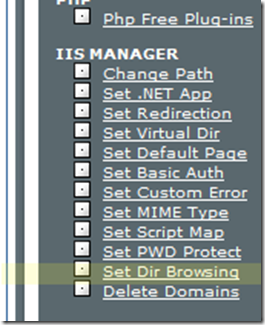
image

Sounds promising.  Sure enough, after clicking that option, I was able to browse all my directories and set “Browsing On” for whichever I chose.  I then browsed to this folder using a web browser.  I expected it to somehow run the service, then throw up an expected error saying that it couldn’t find it.  Instead, I got a directory listing with a single file: myservice.svc.  @#$%.  I don’t want people to actually be able to browse my svc file.  I want it to actually be run.  So I disabled browsing on that folder.  Strike 1. 

Alright, I saw another option that looks just vague enough to be promising:

image

Maybe this would set a certain file to be considered a “.NET App”, and maybe run as such.  (I should have mentioned earlier that I had Google’d every step of this process and ran into several dead-ends, hence the need to even post this article-blog-entry.)  Google led me to believe that this was for running ASP.NET applications, but there was some hint that it applied to web services as well.  A WCF web service is a .NET application, technically, isn’t it?  At least, it’s run within one.  So choosing this option let me pick a folder to set as a .NET application.  This made little sense to me, because a folder is a folder, not an application.  But I assumed that IIS would intelligently look inside the folder for an applicable application.  So I choose my “myservice” folder and set it as an application.  Back to the web browser:

Directory Listing Denied

This Virtual Directory does not allow contents to be listed.

@#%$!!!!!

Okay okay, no sweat.  I will try to turn browsing on; because maybe it will work properly in conjunction with setting that folder as a .NET App.  WRONG.  It still browsed the folder, .svc and all.  Okay, I will try to give execute permissions to the actual directory via my FTP client:

Directory Listing Denied

This Virtual Directory does not allow contents to be listed.

At this point, I’m thinking to myself: “Wow, that would have been super swell if D-roc had actually explained the first thing about getting this set up in his article.”

Okay, maybe I’m going about this with some wrong assumptions.  I mean, who cares if I can’t browse the folder?  I shouldn’t be able to browse the folder anyway, right?  This web service isn’t even supposed to be accessed via a web browser; it’s supposed to be accessed via some other client app on a user’s PC.  So, I start thinking to myself: Visual Studio is cool enough not to require me to manually FTP a freakin’ svc file to my web server.  There should be a way within Visual Studio to do this.  Well, luckily enough, I have my Visual Studio Web Service project I had previously created.  And sure enough, if I right-click that project, I see a “Publish…” option.  So I chose that option, and it prompted me for the target location.  I entered: http://mydomain.com/myservice and chose the default options, and clicked Publish. 

Much to my amazement, it worked the first time!

Connecting to http://mydomain.com/myservice…
Publishing folder /...
Publishing folder bin...
========== Build: 2 succeeded or up-to-date, 0 failed, 0 skipped ==========
========== Publish: 1 succeeded, 0 failed, 0 skipped ==========

I verified that in fact there were files published to this location.  Okay, okay, that’s a first step!  Now I want to test this service, which, by the way, simply takes an input string and manipulates it in a simple way.  I had some trusty code at my disposal from an online tutorial involving using WCF for interprocess communication.  Even though that’s not what I was doing, I still needed to make a connection using a similar method (or so I assumed).

So, in short, my client needs to create a channel between itself and the server.  It can do this using the handy ChannelFactory class provided by WCF:

ChannelFactory<IMyService> httpFactory = new ChannelFactory<IMyService>(
            new BasicHttpBinding(),
            new EndpointAddress("http://mydomain.com:8000/MyService"));

IMyService httpProxy = httpFactory.CreateChannel();

So this is my client app.  It references a shared contracts library which defines IMyService.  In case you haven’t tell by now, I’ve replaced the real names of my things with fake ones, to protect my billion dollar ideas.  If you want a full explanation of my logic here, please refer to the tutorial I referenced earlier.  So, I figured that something would go wrong if I ran this code, so I did – just to get a taste of what this brand of failure looked like, so that I’d recognize it in the future.

When I ran the test client, the handy built-in Visual Studio service host launched.  This was a bit disconcerting, since the ServiceHost I care about is the one allegedly hosted on my web server, so I didn’t want the local one to interfere.  But I carried on.  To my not-so-surprise, no exceptions were thrown when I called httpFactory.CreateChannel.  The real test would be the following line:

string translatedMessage = httpProxy.TwistMessage("I am a message.");

This code should actually connect to my service through my proxy, send it some message and get a string response, all handled for me.  Right?  I mean, I published my service already, so hopefully I can expect good things.  No such luck; I got an EndpointNotFoundException:

Could not connect to http://mydomain.com:8000/MyService. TCP error code 10060: A connection attempt failed because the connected party did not properly respond after a period of time, or established connection failed because connected host has failed to respond xx.xxx.xx.xx:8000.

Okay, so let’s review my understanding: The endpoint is somewhere on the web server.  It’s part of the service, which is hosted by a ServiceHost.  But IIS manages the ServiceHost.  Somehow I need a ServiceHost running from IIS on my web server.  I already used the management tool to set a folder as an IIS .NET application (which, again, makes little sense because a folder is not any sort of executable as far as I know).  But wait, why did I use port 8000?  I just assumed that was proper, because I copied it from an example.  So let’s remove it and see what happens when I run the TestApp again, and attempt to call a service method from the proxy:

image

Progress!  Maybe!  Virtually clueless, I google’d this problem.  I found some forum posts with little help provided, but also this seemingly potentially helpful MSDN article.  In a cryptic way, the article explained – or so I believe – that I need to associate svc files with a certain DLL (aspnet_isapi.dll) in IIS.  It gave instructions about how to do this, of course working from the assumption that I am running IIS locally, which I, like hundreds of thousands of other people, are not.  No matter, there’s got to be an obvious way to accomplish the same thing in my web host.  Sure enough, something promising:

image

Clicking this link led me to an administration page where I could choose file extensions and the “program” (for lack of a better term) to execute them with.  I didn’t see the aspnet_isapi.dll listed explicitly, but I saw the option “ASP.NET”, which seemed to be close enough:
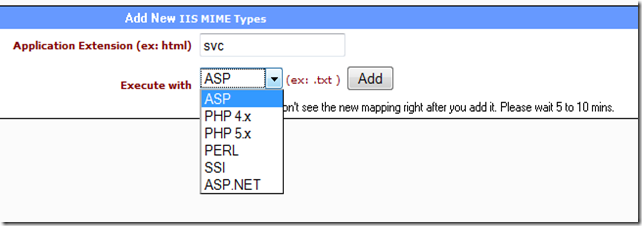
image

BAM!  After clicking Add, sure enough, the association was listed as: C:\WINDOWS\MICROSOFT.NET\FRAMEWORK\V2.0.50727\ASPNET_ISAPI.DLL.  Ladies and gentlemen, this is called “progress”.  Carelessly ignoring the potential warning about waiting 5 to 10 minutes, I ran my test app again:

image

Dang.  Well, I can wait the 5-10 minutes, but in the meantime I’m going to check the files published to my folder, since earlier I explicitly removed my old bogus svc file (assuming Visual Studio would be smart enough to create one for me when publishing).  Yep, it did.  The svc file is sitting there in the folder, sure enough.  Okay, I will wait… 

WAITED.  SAME ERROR.

Okay, let’s try a new angle: I’m going to connect to the svc file with the web browser:

Server Error in '/myservice’ Application.

Runtime Error

Description: An application error occurred on the server. The current custom error settings for this application prevent the details of the application error from being viewed remotely (for security reasons). It could, however, be viewed by browsers running on the local server machine.

…

Okay, I’ve had experience with this type of exception before, and it gave me instructions for getting specific details about the error message by modifying my web.config file:

<!-- Web.Config Configuration File -->

<configuration>
    <system.web>
        <customErrors mode="Off"/>
    </system.web>
</configuration>

So I’ll try this.  Nothing to lose.  I quickly discover that I don’t have a Web.Config, but I do have an App.Config.  Close enough, right?  It has a <configuration> group, so that’s probably the same, right?  BOOM, added.  Published.  Dang, no change.  Viewing the Web.Config in my app directory via FTP revealed that the customErrors tag was not added.  But wait, was I deceived?  My healthy skepticism of software brought my attention to a Publish dialog option.  Which one?

image

Choosing the “Delete all existing files prior to publishing” option made the customErrors tag propagate, and I was finally able to see the actual error:

[ArgumentException: This collection already contains an address with scheme http.  There can be at most one address per scheme in this collection.
Parameter name: item]

Oh my, look what we have here!!  After hours of struggling trying to learn how to host a WCF service in a shared hosting plan, I’ve finally reached the point where D-Roc’s tutorial, entitled “Hosting Wcf Services on a Shared Hosting Plan” begins!  Well hey, whaddya say we follow his instructions?

(Please refer to D-Roc’s tutorial for a walkthrough of this process.)

Now that I’ve completed the steps D-Roc described, I’m gonna try loading the svc file in a web browser again.  I don’t expect anything to work, since I’m not actually calling the service’s methods, but I just want to see what happens:


Server Error in '/myservice’ Application.


The resource cannot be found.

Description: HTTP 404. The resource you are looking for (or one of its dependencies) could have been removed, had its name changed, or is temporarily unavailable.  Please review the following URL and make sure that it is spelled correctly.

Eh, that’s not the first thing I expected, but I’m going to assume that there’s just some dependency of the service that can’t be loaded considering I’m like… not properly connecting to the service.  Shaky reasoning, I know, but really, what would I expect to happen if I connected in this unorthodox way?

Anyway, if I recall, I had a test app that I was playing around with.  Let’s see if my recent changes made any difference regarding the problem I was having.  I ran it and….

image

Ugh, kill me.  Alright, I Google’d some more and found that someone had had a similar issue, and solved their problem by changing their endpoint address to actually point to the svc file rather than just the virtual directory.  In plain English, instead of:

ChannelFactory<IMyService> httpFactory = new ChannelFactory<IMyService>(
            new BasicHttpBinding(),
            new EndpointAddress(http://mydomain.com/MyService/));

I should (maybe) write:

ChannelFactory<IMyService> httpFactory = new ChannelFactory<IMyService>(
            new BasicHttpBinding(),
            new EndpointAddress(http://mydomain.com/MyService/MyService.svc));

So I made this change and ran the test app.  Here is what I got:

ServiceActivationException was unhandled
The requested service, 'http://mydomain.com/MyService/MyService.svc' could not be activated. See the server's diagnostic trace logs for more information.

I DON’T HAVE ACCESS TO THE SERVER’S DIAGNOSTIC TRACE LOGS!  It’s a remote host!!

So at this point, I’m thinking I was better off without specifying the svc file in the endpoint address.  At least before I was getting an exception that seemed to imply that my service was being contacted and my method request was being rejected.  This new exception makes it sound like my service isn’t even executing.

So, by now you must be anxiously awaiting my resolution to this problem.  Unfortunately, I haven’t come across one yet!  I will have to leave you in suspense until I actually figure out how the heck to get this thing working properly.  (Hint: I will ask D-Roc to tell me what the @#$% he did.)

Update: It turns out that my custom factory created from D-Roc’s tutorial was actually expecting the service to be accessed via “www.mydomain.com” rather than “mydomain.com”.  Here’s the tiny change I had to make:

ChannelFactory<IMyService> httpFactory = new ChannelFactory<IMyService>(
            new BasicHttpBinding(),
            new EndpointAddress(http://www.mydomain.com/MyService/MyService.svc));

But then, when running the test client and calling my service method on the proxy, I got a ProtocolException: Content Type text/xml; charset=utf-8 was not supported by service…  To fix this, I needed to change BasicHttpBinding to WSHttpBinding, like this:

ChannelFactory<IMyService> httpFactory = new ChannelFactory<IMyService>(
            new WSHttpBinding(),
            new EndpointAddress(http://mydomain.com/MyService/MyService.svc));

Thanks to this article for explaining this.

Update 2: I found it quite odd that a Visual Studio 2008 Web Service project item wouldn’t create an svc file within the project.  Instead, it would generate a generic one automatically every time I published my service (via Visual Studio’s Publish… option).  But, as it turns out, if I manually add an svc file into the project, it will publish that one instead, and won’t generate one on its own.  The more you know.

After all this headache, my web service finally ran.  I feel much smarter now.  Oh, and to put things in perspective, all of these struggles I’ve encountered are still much less of a headache than the iPhone development experience.